In this article: You’ll learn how to install, activate, and operate the MOD Bike Alarm & Finder powered by Scout. This device combines a powerful motion-sensitive alarm with Apple Find My tracking to help protect your bike from theft and give you real-time location visibility if it ever goes missing.
This Article Applies to the Following Bikes
Difficulty
★☆☆ Easy
Estimated Time
10–15 Min
Before You Start
Tools you will need
Multitool with Allen Wrenches (included in your bike tool kit)
iPhone or iPad with the Apple Find My app
Preparation
Power off your bike and place it securely on the kickstand or a work stand.
Choose your mounting location (frame tube or bottle cage mounts) before beginning installation.
Watch the Full Step-by-Step Video Guide
Steps to Setup
Step 1: Enable Pairing
Only pair your Scout through the Knog app and the Apple Find My app.
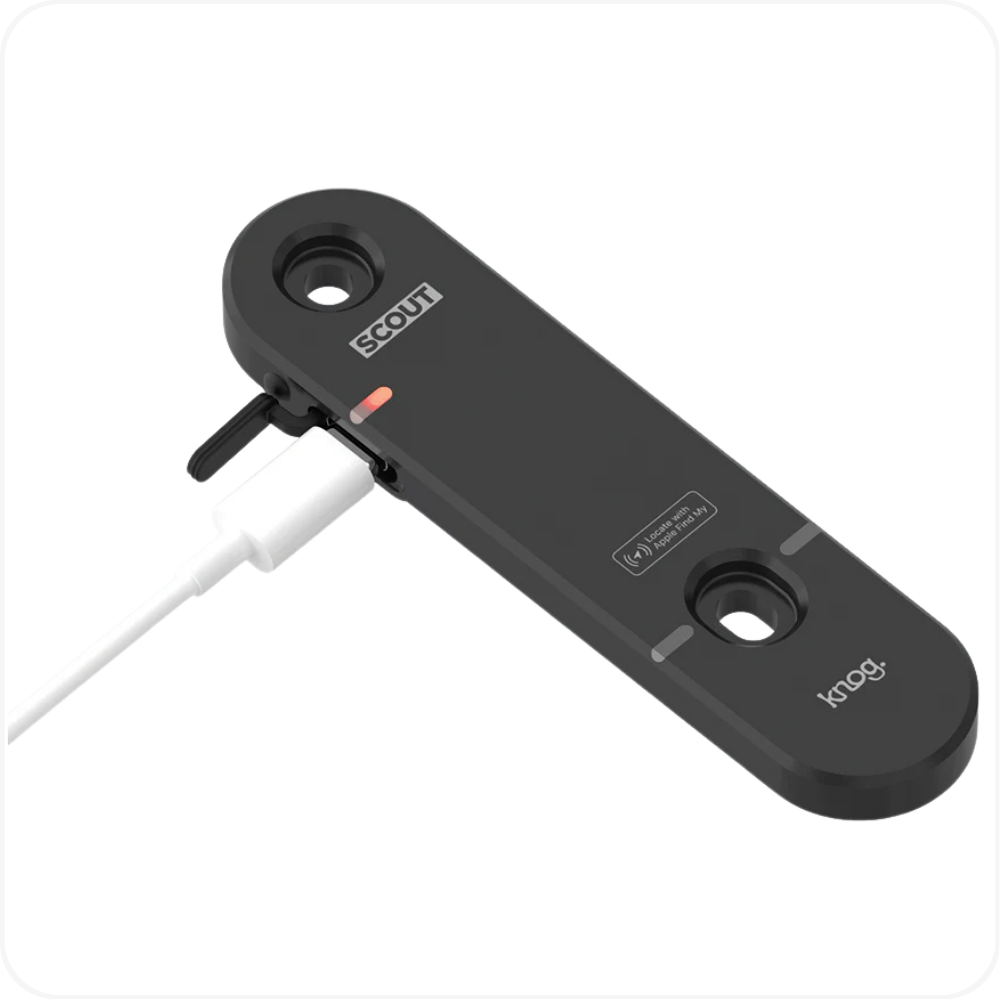
Connect the Scout to a USB power source using a USB-C cable. After a few seconds, you’ll hear a 3-tone beep indicating the device is in pairing mode. Pairing mode stays active for 10 minutes.
Note: If the Scout was previously linked to another Knog mobile account or Apple ID, make sure that it has been removed from accounts via the Knog Mobile and Find My apps, then perform a factory reset of the Scout as described further below.
Step 2: Setup the Knog App
Download the Knog app from the App Store.
Open the app and create your profile by entering the required information.


Step 3: Connect & Register the Device
Ensure your Scout is charged and nearby. Tap the + icon in the Knog app to search for the device.
Select Knog Scout from the list of available devices.
Enter a name for your Scout.
Approve the Bluetooth pairing request to complete the connection.
Note: The Scout stays in pairing mode for 10 minutes after being plugged in. If it doesn’t appear under My Devices, reconnect it to the charger to re-enable pairing.

Step 4: Update Firmware
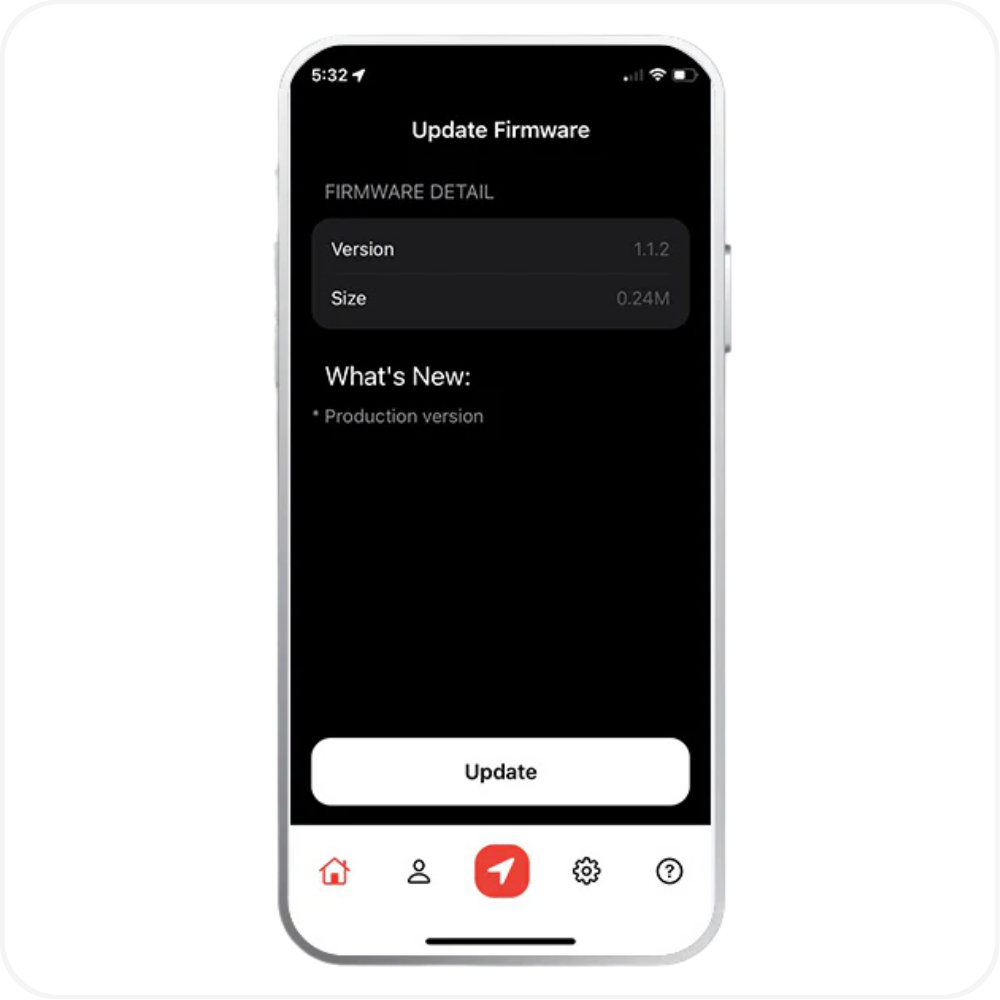
Once your Scout is connected, tap the three dots in the Knog app to open more options. Scroll down and select Update Firmware.
If your Scout is already up to date, you’ll see a message that says You are up to date.
If an update is available, download and install it. The app will show the installation progress. If you cancel the update at any time, the Scout will continue using its current firmware
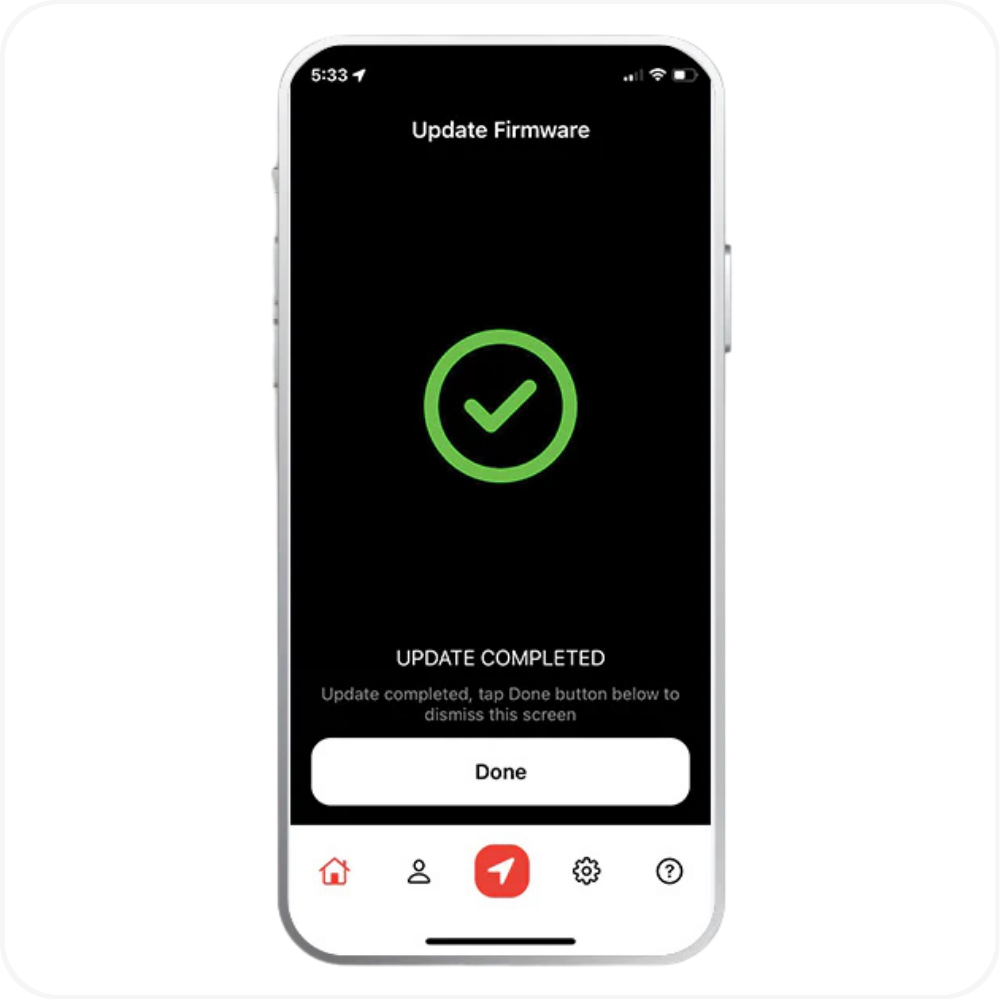
After the update installs, the Scout will automatically reset to activate the new firmware.
When the process is complete, a green checkmark will appear.
Step 5: Connect to Find My
Open the Find My app by tapping the red arrow button at the bottom of the Knog screen.
Tap Add New Item, then select Add Other Item.
When the Scout appears, tap it to connect, then choose a name for your device. Agree to the Apple Find My terms and conditions to complete setup.

Step 6: Charge to Full
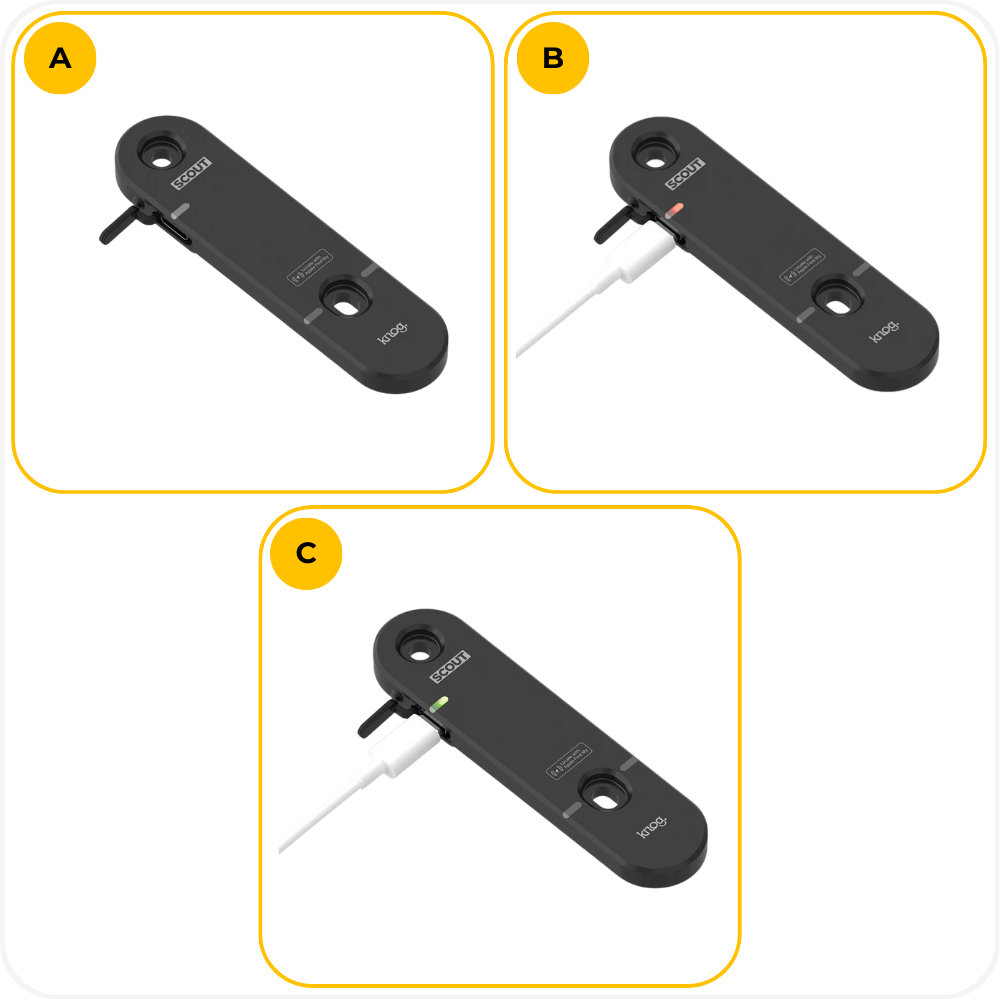
Open the USB door seal.
Connect the USB-C charging cable. A red LED will illuminate while charging.
When the LED turns green, the Scout is fully charged.
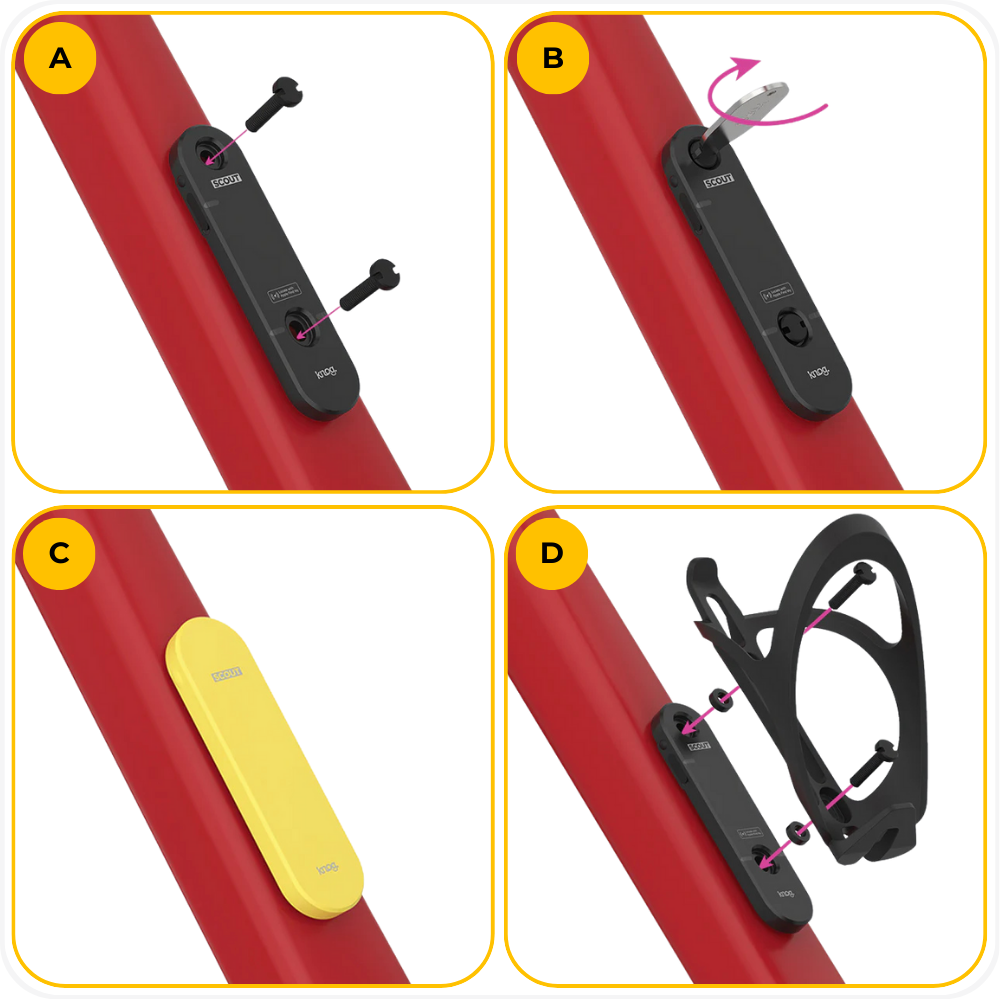
Step 7: Mount to Bike
The Scout can be mounted to any standard bottle cage location.
Place the Scout on your bike, aligning the holes with bottle cage screw bosses, then insert the screws.
Use the Scout Security tool to tighten the screws and secure the Scout.
For added protection against water & mud, or to signal to potential thieves, use the Scout Hi-Viz Overt Cover.
The Scout can be mounted under any standard bottle cage. When mounting the Scout under a bottle cage, use the spacers provided.
Note: Do not over-tighten the screws. Do not lose the Security Tool. Use the hole in the tool to attach it to a keyring.
Steps to Arm & Disarm from iPhone
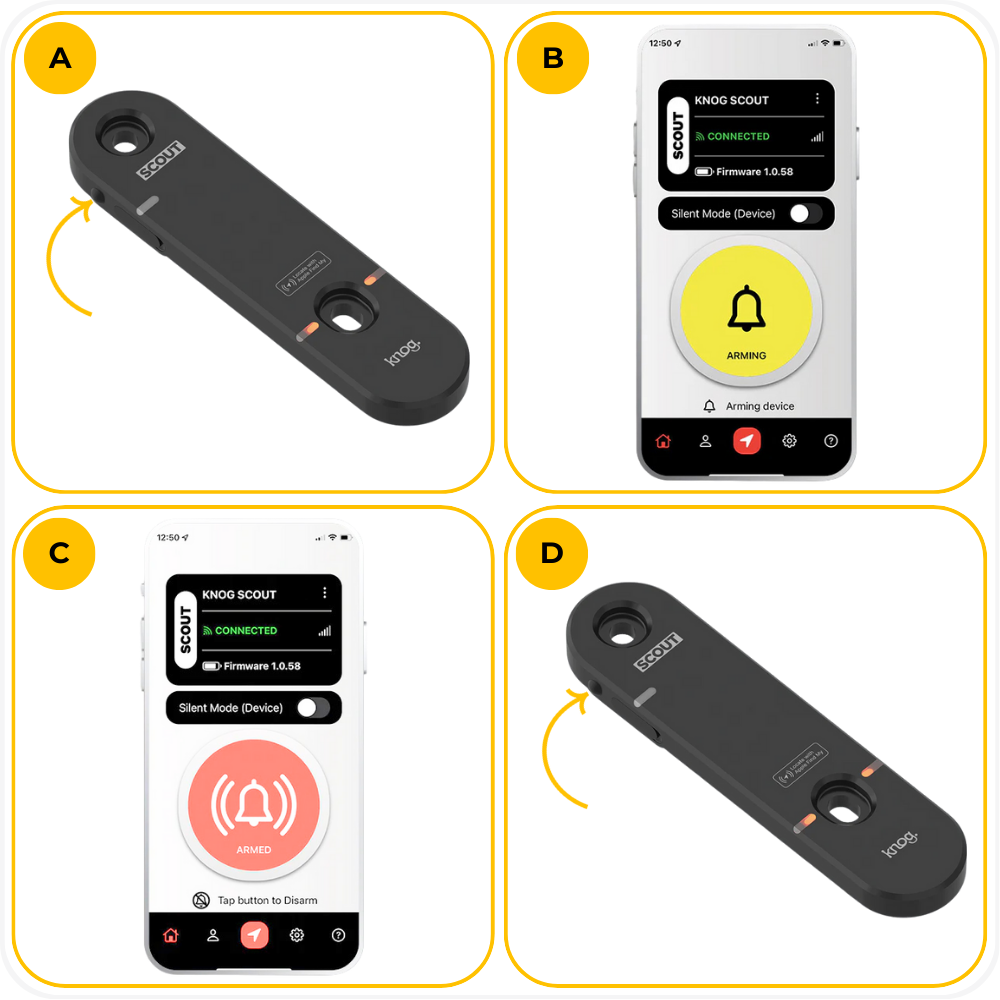
To arm the Scout, ensure your phone is within Bluetooth range and shows the device as Connected. Tap the large bell icon to arm it.
Once armed, the bell icon will update to reflect the active alarm. To disarm, stay within Bluetooth range and tap the bell icon again.


Steps to Arm & Disarm from Scout
To arm the Scout, make sure the phone is in very close range and the Knog app is active.
Press and hold the button on the Scout for 1 second to begin arming.
The LEDs will flash red and the bell icon will turn yellow while the Scout arms.
To disarm the Scout make sure the phone is in very close range and the Knog app is active on the phone.
Press and hold the button on the Scout for 1 second to disarm.
Troubleshooting
Scout or Knog app not responding → Plug the Scout into a USB-C charger until the LED turns green, then relaunch the Knog app.
Scout not appearing during pairing → Pairing mode lasts 10 minutes after connecting to power. Reconnect the Scout to a USB-C charger to re-enter pairing mode.
Knog app not detecting Scout → Force-quit the app and reopen it. Confirm you have the latest version of the Knog app installed.
Bluetooth connection issues → Ensure your phone is within very close range (approx. 1 m / 3 ft) and Bluetooth is enabled.
Unable to arm or disarm Scout → The Knog app must be active and the phone must be within close range. Check charge level and reconnect to USB-C if needed.
Need to remove Scout from phone → If transferring to another user or switching to a new device, follow the removal process inside the Knog app to correctly unpair the Scout.
FAQs
Does the Scout work without the Knog app?
You need the Knog app for setup, firmware updates, and device management. After setup, the alarm and Apple Find My functions work without having the app open.Why isn’t my Scout appearing during pairing?
The Scout is only in pairing mode for 10 minutes after being connected to a USB-C charger. If it doesn’t appear, reconnect it to power to reactivate pairing mode.Why can’t I arm or disarm the Scout?
Your phone must be within very close Bluetooth range (approx. 1 m / 3 ft). Move closer and make sure Bluetooth is enabled.Can I track my bike without the Find My app?
Apple Find My is required for global tracking. Make sure your device is running the latest version of iOS, iPadOS, watchOS, or macOS.What if the alarm doesn’t sound when the bike moves?
Confirm the Scout is armed in the Knog app or via the physical button. Also check that Bluetooth is connected and the unit is fully charged.How do I know if the battery is low?
The Knog app will show battery status. When charging, the LED turns red, then green when fully charged.Can I use the Scout on any bike?
Yes. Scout attaches to any standard bottle cage mount and can be mounted overtly or stealth-mounted under a bottle cage.
Warning
⚠️ Important Safety & Liability Notice

Always ensure the Scout is securely mounted and all screws are properly tightened before riding. An improperly installed device may detach during use, leading to damage or loss.
Do not attempt to modify, open, or tamper with the Scout. Doing so may damage the device, cause malfunction, or void your warranty.

Only arm or disarm the Scout when your bike is stationary. Interacting with the alarm system while riding can cause distraction and loss of control.

If you are not confident installing or operating the Scout, seek assistance from a qualified technician or authorized service provider. MOD BIKES is not liable for injury, damage, or loss resulting from improper installation, misuse, or failure to follow these guidelines. Local laws and regulations may apply.
Was this article helpful?
That’s Great!
Thank you for your feedback
Sorry! We couldn't be helpful
Thank you for your feedback
Feedback sent
We appreciate your effort and will try to fix the article